How to Set Up an AI Voice Recorder Like the Plaud NotePin?
Do you often lose track of great ideas during meetings? Do you struggle to write notes while still paying attention to a conversation? An AI voice recorder can solve this problem for you.
These small devices capture every word you speak. They then turn your audio into text. Some tools even summarize the entire conversation for you automatically.
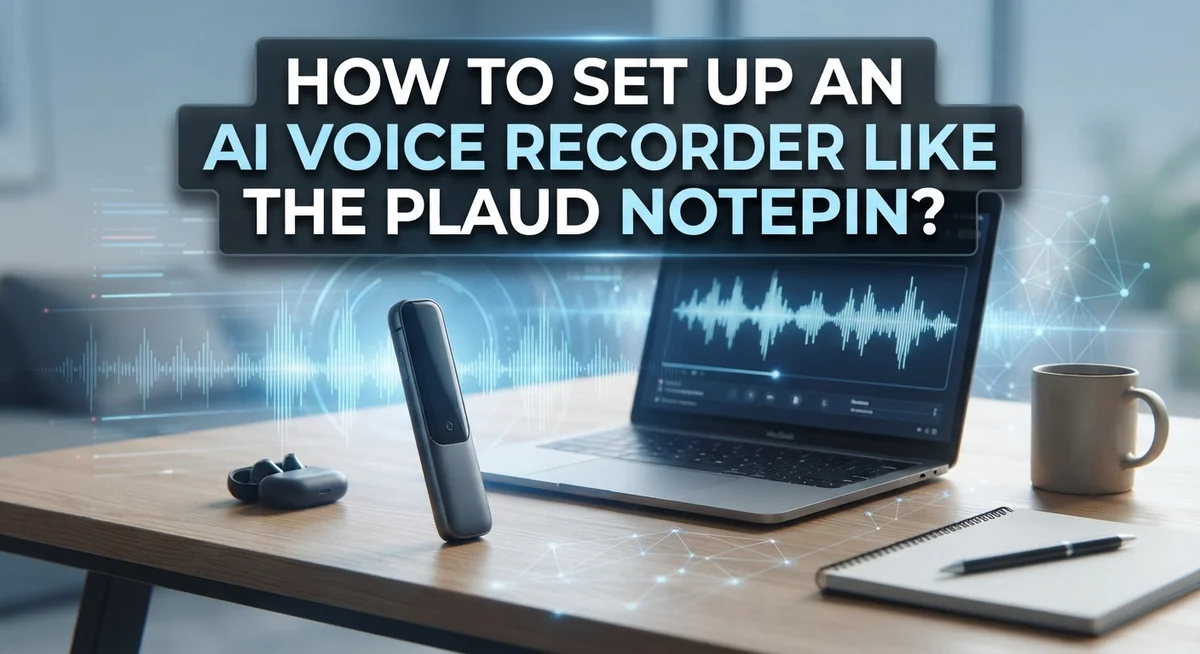
Think about a device like the Plaud NotePin. It clips onto your shirt or sits on a table. It listens quietly while you focus on the discussion at hand. This lets you stay present in meetings, brainstorming sessions, or phone calls.
Setting up this type of device is simple, but a few small steps matter. You need to pair it with an app correctly. You also need to position it well for clear sound.
This guide breaks down the entire process for you. We will explain how to connect your device to an app. We will show you how to start a recording the right way. We will also share common mistakes to avoid.
By the end, you will feel confident using your own AI recorder.
In a Nutshell
Setting up an AI voice recorder does not need to be hard. Here is a quick list to help you remember the key steps.
-
Open the app first. Always start by opening your phone app before you touch the device. This helps the system find your recorder fast.
-
Pair the device correctly. Press and hold the record button. Wait for the white light to flash before you let go.
-
Clip it somewhere smart. Attach the device to your shirt or place it on a table. Good placement means clear audio.
-
Press record to start. A single push starts the capture. The light will flash to confirm it is working.
-
Let the app do the work. Your app will automatically transcribe the audio into text once you stop recording.
-
Check for summaries. Most devices also create a short summary. This helps you review meetings without reading everything.
-
Avoid common mistakes. Do not rush the pairing step. Always confirm the light flashes before you walk away.
What Is an AI Voice Recorder and How Does It Work
An AI voice recorder is a small device that captures audio and turns it into useful information automatically. The device records conversations, meetings, and brainstorming sessions without requiring you to type or take manual notes.
Here’s how the process works in simple steps. First, the device captures clear audio from your environment. The microphone picks up your voice and the voices around you. This audio stays stored on the device until you process it.
Next comes the transcription step. The AI technology converts your spoken words into written text. This happens automatically after you stop recording. You don’t need to do anything manually. The app handles this conversion in the background.
Then the device creates a summary of what was discussed. Instead of reading through pages of notes, you get a short version highlighting the key points. This saves you time and keeps information organized.
The entire system works because of the connection between your device and the app on your phone. Once paired, they communicate wirelessly. Your recordings sync to the app, where transcription and summarization happen.
Why does this matter? You stay focused during meetings instead of looking down at a notebook. Your hands remain free. Your attention stays on the conversation and the people speaking.
The device uses built in technology to understand spoken language. It recognizes different speakers, punctuation, and context. This makes the final text readable and accurate.
The whole workflow removes friction from note taking. You simply press record, clip the device to your shirt, and let the technology work. No complicated steps. No manual typing required. The AI handles everything after you finish recording.
Preparing Your Device and App for Setup
Before you start recording, take a few minutes to get your device and app ready. This preparation step makes the entire process smoother and faster.
First, check that your phone has the right app installed. Visit your phone’s app store and download the application for your AI voice recorder. Make sure your phone’s operating system is current. Older software versions may cause connection problems later.
Next, charge your device fully. Most AI voice recorders need battery power to work. Plug it into a USB charger and wait until the indicator light shows it is completely charged. A fully charged device ensures you can record entire meetings without interruption.
Check your phone’s Bluetooth settings. Go to your phone’s settings menu and make sure Bluetooth is turned on. Your device and phone must communicate wirelessly to pair together. Having Bluetooth active before you start the setup process saves time.
Find a quiet space to complete the setup. Background noise can interfere with the pairing process. A calm environment helps you focus on each step without distraction.
Open the app on your phone and look for a “Connect” button or similar option. This button starts the pairing process. Read any instructions the app displays. Some apps show helpful tips about what happens next.
Keep your device close to your phone during setup. Devices work best when they are within a few feet of each other. This proximity helps establish a strong connection quickly.
Finally, have your device ready to hold. You will need to press the record button during pairing, so make sure you can easily access it. Taking these simple preparation steps now prevents frustration later and gets you recording faster.
Step-by-Step Guide to Connecting Your AI Voice Recorder
Once your app is open and your device is charged, you’re ready to connect. The pairing process takes just a few minutes and creates the link between your device and phone.
Look for the “Connect” button in your app. This button opens the pairing menu where you can select your specific device model. Tap it and wait for the app to search for available devices nearby.
Your device will now enter pairing mode. Press and hold the record button on your device until you see a white light flash. This flash tells you the device is ready to pair. Do not release the button too early. Wait for that light to appear before letting go.
The app should recognize your device within seconds. You’ll see it appear in the list of available devices on your phone screen. Select it to complete the connection.
Once paired, the app confirms the successful link. You might see a confirmation message or the device name appears in your connected devices list. This means your device and app can now communicate.
Keep your phone and device close during this entire process. Bluetooth works best when items are within a few feet of each other. If pairing fails, try again from the beginning.
After successful pairing, your device remembers this connection. You won’t need to repeat this process every time you record. Simply open the app and press record when you’re ready to capture audio.
Test the connection by pressing the record button once more. The app should show that recording is active. This quick test confirms everything works properly before your first real recording session.
How to Start and Manage Your First Recording
Starting your first recording is straightforward once your device pairs with the app. Clip the device to your shirt, jacket, or a nearby surface where it can pick up clear audio. The positioning matters because it affects how well the device captures sound during your meeting or conversation.
Press the record button and hold it until you see the white light flash. This flash confirms the device is actively recording. You’re now free to focus completely on what’s happening around you instead of writing notes.
During the recording, the device captures everything in the room. Speak naturally and let conversations flow. The AI handles all the listening work for you. You don’t need to do anything special while recording is happening.
When you finish the conversation or meeting, press the record button again to stop. The device stops capturing audio immediately. At this point, the app begins its automatic work in the background.
Here’s what happens next. The app transcribes your audio into written text. This process takes a few minutes depending on how long your recording was. You can check the app to see the text version of everything that was said.
The device also creates a brief summary of the main points from your recording. This summary saves you time because you get the key information without reading the entire transcript.
Common mistakes happen when people rush the process. Don’t hold the record button for just a second. Wait for that white light to flash so you know it’s working. Also, keep the device positioned where it can hear clearly. If it’s buried in a pocket or bag, audio quality drops.
Understanding Automatic Transcription and Summaries
Automatic transcription turns your spoken words into written text within seconds of your recording ends. This happens without you lifting a finger. The device sends your audio file to AI servers that recognize every word you said and convert it to readable text.
The transcription process uses advanced language recognition technology. It listens to your voice, identifies individual words, and arranges them in the correct order. This works even when multiple people speak during a meeting. The AI learns speech patterns and adjusts for background noise or accents.
Summaries go one step further than transcription. After your words become text, the AI reads through everything and pulls out the most important points. Instead of reading a five page transcript, you get three or four key takeaways. This saves you hours of review time.
The real value comes from having both tools working together. You get the full transcript if you need exact quotes or specific details. You also get the summary when you need the quick version for your boss or team.
The AI focuses on action items, decisions made, and main topics discussed. It removes filler words and repetitive sections. You end up with clean, organized information ready to share or reference later.
This automatic process runs in the background. You don’t wait around or press extra buttons. The moment your recording finishes, transcription and summarization begin instantly. Within a few minutes, both versions appear in your app.
Understanding how these features work helps you use them effectively. You can search transcripts for specific words or phrases. You can share summaries with people who didn’t attend the meeting. This transforms raw audio into actionable information.
Tips for Best Audio Quality and Device Placement
Proper placement makes a huge difference in how clearly your device captures audio. Position the recorder about 12 to 18 inches away from the main speaker. This distance lets the microphone pick up voices without picking up too much background noise or rustling sounds.
Clip your device to clothing that sits near your chest or collar area. This placement keeps the microphone pointed toward conversation participants. Avoid placing it in pockets or under heavy fabric, as these locations muffle sound quality significantly.
Keep the device away from loud equipment or machinery. Air conditioners, fans, and traffic noise create interference that degrades recording clarity. If you’re in a noisy environment, move closer to your conversation partner so the microphone prioritizes their voice over background sounds.
Point the microphone opening toward speakers whenever possible. Most recorders have a specific microphone direction that captures sound best. Check your device documentation to understand which side performs optimally.
Test your setup before important meetings. Record a short sample conversation and listen back to the quality. Adjust placement if voices sound distant or unclear. This simple step prevents missing critical information during actual meetings.
Avoid touching the device while it records. Movement and handling create unwanted noise that interferes with audio clarity. Once you press the record button and see the white light flash, keep the device stationary.
Temperature and humidity also affect audio quality. Extreme conditions can impact microphone performance. Store your device in a climate controlled space when not in use.
These practical adjustments ensure your recordings capture conversations clearly and completely.
Common Setup Mistakes and How to Avoid Them
Setting up an AI voice recorder requires attention to detail. Many people make mistakes during the initial connection process. These errors prevent the device from working properly.
The most common mistake is rushing the pairing step. You need to hold the record button long enough for the white light to flash. A quick tap won’t work. The light flash confirms your device is actually pairing with the app. Without this visual confirmation, your device remains unpaired and won’t record anything.
Another frequent error involves improper app navigation. Users sometimes click the wrong buttons in the application. Always look for the “Connect” button first. Then select your specific device model from the list. This two step process ensures you’re connecting to the right device.
Placement errors also cause major problems. People often position the device too far from speakers. The microphone needs to point toward the people talking. If you clip it to your pocket facing downward, you’ll capture muffled audio. Instead, position it near your chest or collar area where it faces the conversation.
Environmental factors matter more than many realize. Recording near air conditioners or fans creates background noise. Traffic sounds outside windows also interfere with clarity. Choose a quiet location whenever possible for your recordings.
Testing before important meetings prevents disappointment. Record a short sample conversation and listen back. This reveals any audio quality issues ahead of time. Adjust your placement or location based on what you hear.
Patience during setup saves frustration later. Follow each step carefully without rushing. Verify the white light appears during pairing. Check your device placement before recording begins. These simple precautions ensure your recordings capture conversations clearly from the start.
Troubleshooting Connection and Recording Issues
When your device won’t connect or stops recording, start with the basics. Check that your app and device firmware are current. Outdated versions cause most connection problems.
Connection issues often stem from Bluetooth interference. Move away from other wireless devices like routers or microwaves. These create signal conflicts that prevent pairing. Restart both your phone and the device. Power off completely, wait 30 seconds, then power back on.
If the device still won’t pair, forget it from your phone’s Bluetooth settings and start fresh. Open your app and click the “Connect” button again. Press and hold the record button until you see the white light flash. This flash confirms the device is ready to pair. Hold for the full duration even if nothing seems to happen at first.
Recording problems usually mean the microphone isn’t working properly. Test by recording a short sample in a quiet room. Play it back to check audio levels. If you hear nothing, the microphone may be blocked by dust or debris. Gently clean the microphone opening with a soft, dry cloth.
Battery drain causes unexpected shutdowns mid recording. Charge your device fully before important meetings. A low battery may prevent proper recording even if the device powers on.
Distance matters too. Stay within 30 feet of your phone for reliable connection. Walls and obstacles weaken the signal significantly.
If problems persist after trying these steps, check your app’s help section for device specific troubleshooting. Most issues resolve through these basic fixes. Patience and systematic checking solve 90 percent of connection and recording problems quickly.
Final Thoughts
Setting up an AI voice recorder does not need to feel hard. Once you learn the basic steps, the whole process becomes quick and simple.
Pairing your device takes only a few minutes. Open the app, connect your recorder, and wait for that white light to flash.
After pairing, good placement matters most. Clip your device close to speakers and away from background noise sources.
Recording itself stays simple. Push the button, check for the light, and let the device work quietly in the background.
The real value shows up after recording ends. Your AI voice recorder transcribes conversations and creates summaries without extra effort from you.
This means you can focus fully on meetings, calls, or brainstorming sessions. No more scrambling to write notes while missing important details.
Small mistakes often cause big problems. Rushing the pairing step or placing your device too far from speakers leads to poor results.
Take your time during setup. A few extra seconds now saves you frustration later.
Testing your device before important meetings also helps. A short trial recording tells you if your placement and settings work well.
If issues come up, simple troubleshooting usually solves them. Check your Bluetooth connection, restart the app, or reposition your device.
AI voice recorders like the Plaud NotePin remove the burden of manual note taking. They let you stay present in conversations while still capturing every important detail.
Once your setup routine feels natural, using your device becomes second nature. You will wonder how you managed meetings without this kind of support before.
With the right setup, your recorder becomes a reliable tool. It helps you stay organized, save time, and capture information accurately every single time.
Frequently Asked Questions
What happens after I press record?
Once you press the record button and see the white light flash, your device starts capturing audio. The microphone picks up conversations around you. You can clip the device to your shirt, place it on a table, or hold it depending on your preference.
The recording runs continuously until you stop it. You stay free to focus on the meeting or call without typing notes.
How does the transcription work automatically?
After you stop recording, the audio file transfers to the app. The AI processes the audio and converts it to text. This happens in the background while you do other things.
You don’t need to do anything manually. The text appears in your app once processing finishes. Most transcriptions complete within minutes.
Can I use this for phone calls and meetings?
Yes, this type of device works for both situations. During meetings, clip it to your clothing or place it on the table. For phone calls, position it near your phone’s speaker or microphone.
The device captures audio from all directions. This makes it flexible for different recording scenarios.
What if the device won’t connect to my app?
First, check that Bluetooth is on in your phone settings. Make sure you’re holding the record button long enough. The white light flash confirms the device entered pairing mode.
If connection still fails, forget the device from your phone’s Bluetooth menu. Then try pairing again from scratch. This usually solves connection problems quickly.
Does battery life affect recording quality?
A low battery won’t reduce audio quality during recording. However, a device that’s too low on power might shut down unexpectedly. Charge your device fully before important meetings or calls.
Check the battery level in your app before starting any recording session.

DK is the founder and editor of NeuralTechFinds, a tech enthusiast with a deep passion for AI-powered gadgets, smart devices, and everything that makes everyday life more connected and efficient. When not testing the latest tech products, DK is busy researching emerging trends to help readers make smarter, well-informed buying decisions.