How to Take Hands-Free Photos With Smart Glasses?
Imagine walking through a busy street. You see a perfect moment. You want to capture it instantly.
But your hands are full. Or maybe you just want to stay present in the moment.
This is where smart glasses change the game. They let you snap photos and videos without touching your phone.
Smart glasses like Ray-Ban Meta glasses use simple tools to help you shoot hands-free. You can press a button on the frame. You can also just speak a command like “Hey Meta.”
This makes photography easier for everyone. It helps people with limited hand mobility capture memories too. It also gives you a true point of view shot, showing the world exactly as you see it.
In this guide, we will show you how to get started. We will cover pairing your glasses with the Meta AI app. We will explain how to use the capture button and voice commands.
We will also share tips for better framing. You will learn common mistakes to avoid.
By the end, you will know exactly how to take clear, steady photos using only your smart glasses.
In a Nutshell
Here is a quick summary of everything you need to know about hands-free photography with smart glasses.
-
Pair your glasses with your phone using Bluetooth and the Meta AI app. This connection lets your glasses and phone talk to each other.
-
Use the physical capture button on the frame to snap photos or start videos. Press it again to stop recording.
-
Try voice commands like “Hey Meta” if your hands are busy. This is a great option for anyone with limited mobility.
-
Watch for the white notification LED. It blinks during capture and stays lit while recording.
-
Keep your head movements slow and steady. Fast or jerky motions can ruin your framing.
-
Always check your WiFi connection before importing photos. This step moves your pictures from the glasses to your phone smoothly.
Following these simple points helps you capture clear, first-person shots every time. Smart glasses make photography simple, even when your hands are full. With a little practice, you will shoot like a pro in no time.
What Are Smart Glasses and How Do They Capture Photos?
Smart glasses are wearable devices that sit on your face like regular eyeglasses. They have built in cameras, processors, and displays. The main difference is they let you capture photos and videos from your exact point of view without using your hands.
These glasses work through a combination of hardware and software. The camera lens sits on the frame, usually on the left side. It records what you see in front of you. The processor inside handles all the computing. Your smartphone connects via Bluetooth to control and store your content.
How the capture process works is straightforward. You press a physical button on the frame to take a photo. A white notification LED blinks to show the capture is happening. For video, you press the button again to stop recording. The LED stays on while you record. This visual feedback tells you exactly when your glasses are active.
Voice commands offer another capture method. You simply say a wake word like “Hey Meta” followed by your command. This is especially helpful when your hands hold groceries, a child, or other items. The microphone built into the glasses picks up your voice clearly.
The captured images and videos save directly to your glasses’ internal storage. Later, you transfer them to your phone using the companion app. Your phone connects to WiFi to complete the upload. Once imported, the photos appear in your standard phone gallery.
This technology serves an important purpose beyond convenience. People with limited hand mobility gain independence through voice activation. The hands free approach makes photography accessible to everyone, regardless of their physical abilities.
Setting Up Your Smart Glasses for Hands-Free Capture
Getting your smart glasses ready for hands-free capture involves a few straightforward steps. Start by ensuring your glasses have a full battery charge and are powered on. Most smart glasses come with a charging case that fully powers them in about one to two hours.
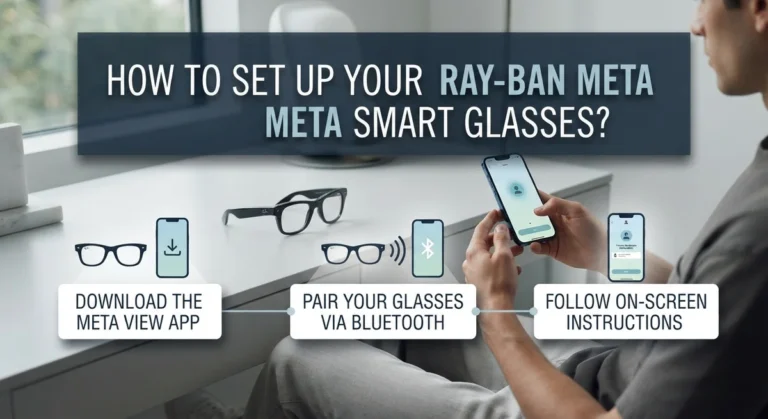
Next, enable Bluetooth on your smartphone. Open the Meta AI mobile app on your phone and navigate to the Menu located at the bottom right of the screen. Select the pairing option and follow the on-screen instructions to connect your glasses via Bluetooth. This wireless connection lets your glasses communicate with your phone.
Once paired, test the physical capture button on your glasses frame. The button is typically located on the side of the frame. Press it once to take a still photo. The white notification LED will blink briefly to confirm the capture. This visual feedback tells you the photo was taken successfully.
For video recording, press and hold the same button. The LED stays on continuously while recording, and you’ll see a steady light instead of a blink. Press the button again to stop recording.
Make sure your WiFi connection is active and stable. You’ll need this later to transfer your photos and videos from your glasses to your phone’s photo app. A weak or missing WiFi signal can prevent media import.
Finally, familiarize yourself with voice command activation. Say “Hey Meta” followed by “take a photo” or “start recording.” This hands-free method works perfectly when your hands are genuinely occupied or when you want a completely touchless experience.
Your glasses are now ready for hands-free shooting.
Step-by-Step: Taking a Photo With the Capture Button
Taking a photo with the capture button on your smart glasses is simple and quick. The button sits on the frame of your glasses, usually on the side near the lens. You press it once to take a single photo.
Before you start, make sure your glasses are paired with your phone through the Meta AI app. This connection allows your photos to sync properly. Open the app and check that Bluetooth is active on both devices.
To take a photo, locate the capture button on your glasses frame. Press it once with your finger. You will hear a small sound or feel a vibration to confirm the action worked. The white notification LED on your glasses will blink briefly. This tells you the photo was captured successfully.
For video recording, press and hold the same button. Keep holding it while you record. The LED will stay on continuously while the video is recording. Release the button when you want to stop recording.
Keep these points in mind while using the button. Your head position matters because the lens captures what you see. Move your head slowly and smoothly for better framing. Jerky movements can make your shots blurry or poorly composed.
Make sure your WiFi connection is stable and active. You will need this connection later to transfer your photos and videos to your phone. Without WiFi, the transfer process may fail or take much longer.
After capturing your photos, open the Meta AI app on your phone. Navigate to your media library and import the files to your phone’s photo app. Your hands-free photos are now ready to view and share.
Using Voice Commands to Snap Photos Hands-Free
Voice commands give you a completely hands-free way to capture photos with smart glasses. This feature works great when your hands are full or you want to stay completely still while shooting.
To use voice commands, start by making sure your glasses are paired with your phone through the mobile app. Your device needs an active internet connection to process voice recognition properly. Once connected, you’re ready to activate capture mode using spoken words.
The most common voice command is “Hey Meta” followed by your capture request. Simply say this phrase clearly and your glasses will listen for your next instruction. Speak naturally without rushing your words. The glasses process your command within seconds and begin capturing.
Your glasses will give you feedback when they recognize your voice command. You’ll hear a subtle sound or see the notification LED respond. This tells you the capture has started successfully. For video recording, use the appropriate voice command to begin and then say the stop command when finished.
Voice commands work best in quieter environments where background noise won’t interfere. If you’re in a loud area, speak a bit louder and more clearly. The glasses are designed to filter some background sound, but very noisy settings can cause recognition issues.
This hands-free method is especially useful for people with limited hand mobility. You can capture moments without needing to press any buttons or use your hands at all. Voice activation gives you complete freedom to focus on the moment you’re photographing rather than the mechanics of taking the photo.
Transferring and Managing Your Captured Media
Once you’ve captured photos and videos with your smart glasses, the next step is getting them onto your phone. This process is straightforward and happens through the Meta AI mobile app.
Start by opening the Meta AI app on your smartphone. Look for the media gallery or library section within the app. Your captured photos and videos appear here automatically once your glasses sync with your phone. Make sure your WiFi connection stays active during this process, as the transfer requires internet connectivity.
Tap on any photo or video you want to view. The app displays your content in a clean, organized layout. You can preview each file before deciding what to do with it next. Swipe through your library to browse all your captured moments.
To move your media to your phone’s main photo app, select the files you want to transfer. Most smart glasses apps offer an export or save option. Choose “Save to Photos” or a similar button. Your images then appear in your phone’s standard photo gallery alongside other pictures.
Organize your content by creating folders or albums within your phone’s photo app. This helps you find specific photos later. You can also add tags or descriptions to remember when and where you captured each image.
Delete unwanted files directly from the Meta AI app to free up storage space. Press and hold on a photo, then select delete. This keeps your glasses’ internal storage from filling up too quickly.
Regular transfers prevent storage issues. Aim to move your media to your phone at least once weekly. This simple habit ensures you never miss capturing important moments due to a full storage capacity.
Tips for Better POV Framing and Composition
Getting great POV photos with smart glasses requires attention to how you position and move your head. The lens sits on the glasses frame, usually on the left side, so be aware of exactly where it points. This awareness helps you frame shots correctly without looking directly at the camera.
Slow, deliberate head movements make the biggest difference in photo quality. When you turn your head to capture something, move it smoothly rather than quickly. Jerky motions create blurry or poorly framed images. Think of your head as a camera on a tripod that glides slowly across a scene.
Your body position matters too. Stand or sit in a way that feels natural and stable. When you lean or shift weight suddenly, the frame shifts with you. Steady positioning keeps your shots consistent and sharp.
Consider what the lens sees before you capture. Since the camera shows your first-person view, imagine what appears in your natural line of sight. Tilt your head slightly up or down to adjust framing. This simple adjustment changes what gets included in the photo.
Lighting affects POV photos just like regular pictures. Face toward light sources when possible. Backlighting or harsh shadows behind you create dark, unclear images. Good lighting in front of you produces brighter, clearer shots.
Practice helps you develop a feel for framing. Take several test photos in different environments. Notice which head angles and positions create the best results. Over time, you’ll instinctively know how to position yourself for better composition without thinking about it constantly.
Common Mistakes and How to Avoid Them
Taking hands-free photos with smart glasses is simple, but mistakes happen. Understanding what goes wrong helps you get better results.
Improper head positioning causes many failed shots. The camera lens sits on the side of your glasses frame, not where you expect it. You need to know exactly where your lens points before capturing. If you position your head incorrectly, your subject won’t appear in the frame. Take a test shot first to see what the lens actually captures.
Jerky head movements ruin your photos and videos. When you move too fast, the image becomes blurry and hard to watch. Move your head slowly and smoothly, like you’re turning to look at something interesting. Quick, sudden movements make footage look shaky and unprofessional.
WiFi connection problems prevent you from transferring media to your phone. Your smart glasses need a stable internet connection to upload photos and videos to your device. Check your WiFi before you start capturing. If your connection drops, your media stays stuck on the glasses until you reconnect.
Voice command mistakes happen in noisy places. Background noise interferes with voice recognition. “Hey Meta” works best in quiet environments where your glasses can hear you clearly. Speak clearly and naturally, not too loud or too soft.
Forgetting to pair your glasses properly creates frustration. Always verify your glasses connect to your phone through the mobile app before capturing. A weak Bluetooth connection causes missed commands and failed transfers.
These mistakes are easy to fix once you know what causes them. Practice taking a few test shots in different situations. You’ll quickly develop better habits and capture clearer, more professional looking photos.
Accessibility Benefits for Users With Limited Mobility
Smart glasses with hands-free photo capture offer significant benefits for people with limited hand mobility. This technology removes the physical barrier of holding a camera or pressing buttons on traditional devices.
Voice activation is the primary accessibility feature. You simply speak a command like “Hey Meta” followed by your capture request. The glasses recognize your voice and take the photo automatically. This method works perfectly for people who struggle with fine motor control or hand strength.
For users with limited arm movement, the hands-free approach eliminates reaching, gripping, and pressing actions. You can capture moments while your hands rest or perform other tasks. The glasses sit on your face, so you don’t need to lift, hold, or position a separate device.
The physical button on the frame offers an alternative. Some users find a single press easier than voice commands. The button requires minimal pressure and hand coordination compared to traditional cameras.
Head positioning becomes your primary control method. You simply aim your gaze where you want to shoot. This works well for people with limited hand or arm function but better neck mobility.
WiFi connectivity is essential for transferring your photos afterward. Ensure your home or workspace has reliable WiFi access. This eliminates the need to manually connect cables or handle devices during transfer.
Voice commands work best in quieter environments. Background noise can interfere with recognition. If voice commands don’t work well for you, the physical button provides a reliable backup option.
The combination of voice activation and automatic transfer creates a truly hands-free workflow. You capture, store, and share photos with minimal physical effort. This independence matters greatly for people managing mobility challenges.
Final Thoughts
Smart glasses make hands-free photography simple and practical. You can capture moments without lifting a phone or fumbling with buttons.
Voice commands and physical buttons give you two easy ways to shoot photos and videos. Choose whichever method feels natural to you.
Practice makes a real difference. The more you use your glasses, the better your framing becomes. Slow head movements and proper lens awareness turn into second nature over time.
This technology helps everyone, not just tech enthusiasts. People with limited hand mobility gain a new way to capture their world. Parents chasing after kids get their hands free for actual parenting. Adventurers keep both hands ready for their next move.
Remember these core basics: pair your glasses through the app, keep WiFi active, and watch that notification LED. These small habits prevent most common problems.
Mistakes will happen at first. Your early photos might look off center or blurry. That’s completely normal and part of learning any new skill.
Stick with it. Your POV shots will improve as you learn how your glasses see the world. Soon you will frame shots almost automatically.
Smart glasses represent a genuine shift in how we capture memories. They let you stay present in the moment instead of hiding behind a screen. You experience life directly while still preserving it.
The technology keeps improving too. Voice recognition gets smarter and battery life gets longer. Each update makes hands-free photography even more convenient.
Try both capture methods and see what fits your lifestyle. Give yourself time to build good habits. Your hands-free photos will only get better from here.
Frequently Asked Questions
Can I trigger photos using only my phone instead of the glasses?
Your phone has limited options for this. The primary capture methods are the physical button on the glasses frame or voice commands. You cannot fully control hands-free capture from your phone alone. The app lets you view and manage photos after capture, but not initiate the shot remotely.
What should I do if voice commands don’t work?
Noisy environments cause voice command failures. Move to a quieter space and try again. Make sure your glasses are properly paired through the app first. Speak clearly and use the exact phrase your glasses expect. If problems continue, check that Bluetooth remains active on your phone.
How do I know when my glasses are actually recording?
Watch the notification LED on your glasses frame. A white LED blinks during photo capture and stays solid when recording video. This visual indicator tells you the capture is active. You do not need to look at your phone to confirm.
Do I need WiFi to take photos, or just to transfer them?
You need WiFi for transferring media to your phone, not for taking the photos themselves. Your glasses can capture photos and videos without WiFi. However, WiFi connectivity is essential when you want to import your media into your phone’s photo app through the Meta AI app.
What if my glasses feel uncomfortable during extended shooting sessions?
Adjust the fit on your face before you start. Position the glasses so the lens sits naturally in your line of sight. Take breaks if needed. Comfort matters because poor positioning leads to bad framing. A secure fit also helps you move your head smoothly for better shots.

DK is the founder and editor of NeuralTechFinds, a tech enthusiast with a deep passion for AI-powered gadgets, smart devices, and everything that makes everyday life more connected and efficient. When not testing the latest tech products, DK is busy researching emerging trends to help readers make smarter, well-informed buying decisions.