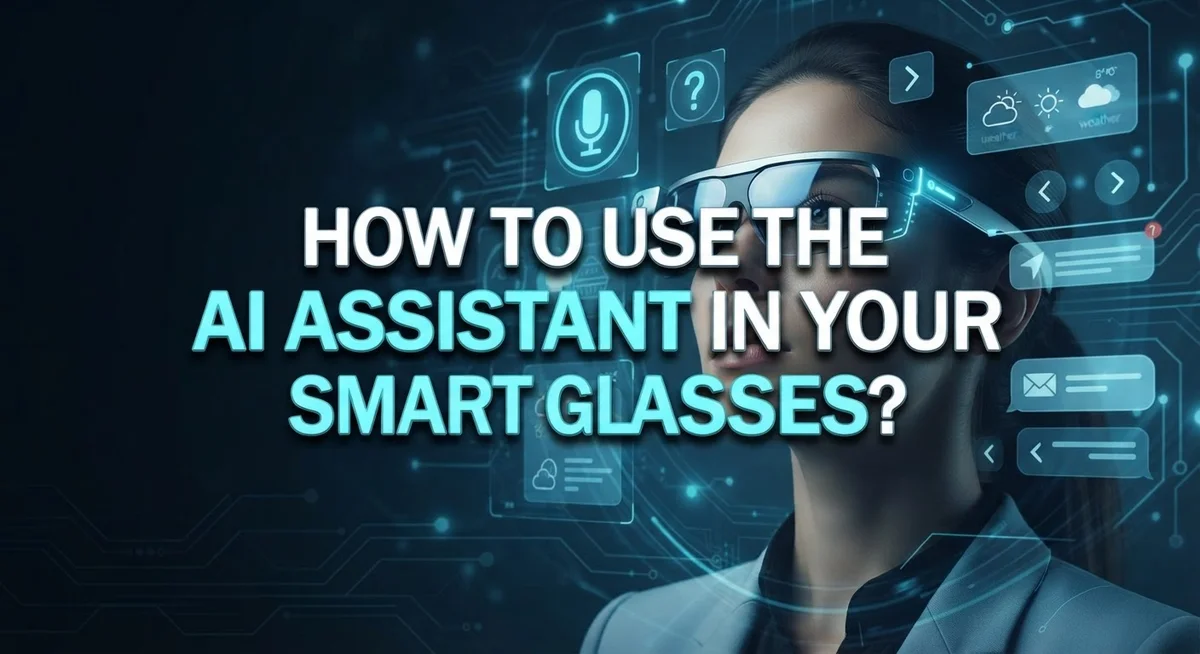
How to Use the AI Assistant in Your Smart Glasses?
Smart glasses are changing how we interact with technology. You can now talk to an AI assistant without touching your phone. It feels like magic, but it is simple once you learn the basics.
Your glasses respond to voice commands and touch gestures. This means you can take photos, record videos, or ask questions hands free. The AI assistant listens and reacts in real time.
Many users get stuck on small details. They forget to charge the case fully. They also miss the touchpad location or do not hold the capture button long enough.
This guide will walk you through everything you need to know. You will learn how to activate your AI assistant using voice or touch. We will cover key commands like starting and stopping video recording.
You will also discover common mistakes people make and how to avoid them. By the end, you will feel confident using your smart glasses like a pro. Let’s get started and unlock the full potential of your device.
In a Nutshell
Here’s a quick summary to help you get started fast.
-
Activate your assistant using voice, touch, or button controls. Say “Hey Meta” for hands free operation. Or tap and hold the touchpad on your frame.
-
Give simple voice commands like “take a video” or “stop recording.” Clear speech works best for accurate results.
-
Charge your case properly before use. Listen for a satisfying click to confirm it’s connected.
-
Hold the capture button firmly. Many people tap too quickly. This causes recordings to fail.
-
Use the double tap feature on your temple’s smart button. This gives you another way to control your glasses.
-
Explore accessibility options built into the system. These features help visually impaired users navigate more easily.
Getting comfortable with these basics makes everyday use much smoother. Once you master activation and commands, your glasses become a truly hands free tool.
Small habits, like charging fully and speaking clearly, prevent most common issues. This foundation sets you up for success as you explore more advanced features later.
Understanding the AI Assistant in Smart Glasses
Your smart glasses contain an AI assistant that works like a personal helper on your face. This assistant listens to what you say and responds to your touch gestures. It processes what your glasses see in real time through built in cameras.
The assistant uses three main ways to activate. You can speak voice commands, tap the touchpad on the frame, or use the smart button on your temple. Each method gives you hands free control so you never need to pull out a phone.
Voice commands are the most natural way to interact. You simply speak clearly to trigger actions like recording video or stopping playback. The system understands simple, direct phrases. Speaking in a calm, clear voice gives you the best results every time.
The touchpad sits on the side of your glasses frame. You can tap it to open menus or hold it down to start recording. This gives you manual control when you prefer not to use voice. The smart button on your temple offers quick access to frequently used features through double taps.
Your AI assistant learns your patterns over time. It remembers your preferences and adapts to how you use it. The more you interact with it, the better it understands your needs and responds accordingly.
The system works best when your glasses have full battery power. A charged case keeps everything running smoothly throughout your day. Proper charging habits ensure your assistant stays ready whenever you need it.
Understanding these core functions helps you use your smart glasses confidently. You now know the activation methods, voice command basics, and how the assistant adapts to your usage. This foundation makes exploring advanced features much easier later.
Getting Started: Setup and Charging Essentials
Your smart glasses need power before they work. Start by locating the charging case that came with your device. This case holds the glasses safely and charges them at the same time.
Find the charging port on your case. Most cases have a USB or magnetic connection point. Plug the charger into a wall outlet or USB power source. The case light should turn on to show it’s charging.
Place your glasses into the case gently. Make sure they sit flat and centered. You should hear or feel a satisfying click sound when they connect properly. This click tells you the charging is working.
Leave your glasses charging for at least two to three hours before first use. A full charge gives you the best performance. Many people forget this step and then struggle with weak battery performance later.
Check the case light while charging. A solid light usually means charging is happening. Some cases show different colors for different battery levels. Red often means low battery, while green means fully charged.
Keep your case nearby during the day. Quick charging sessions help maintain power between uses. Even 30 minutes of charging can give you several hours of use.
Don’t wait until your glasses die completely before charging. Regular charging keeps the battery healthy over time. Batteries work better when you avoid complete drain cycles.
Store your case in a cool, dry place. Heat damages batteries and reduces their lifespan. Keep the charging port clean and free from dust or debris.
Once fully charged, your glasses are ready for activation. You can now start using voice commands and touch controls. Proper charging ensures your AI assistant responds quickly and reliably whenever you need it.
Activation Methods: Voice, Touchpad, and Smart Button
Your smart glasses offer three simple ways to activate the AI assistant. Each method works well in different situations, so you can choose what feels most natural to you.
Voice activation is the quickest option for hands-free control. Simply say “Hey” followed by your assistant’s name to wake it up. The system listens for your wake word even when the glasses are in standby mode. Speak clearly and at a normal volume for best results. Background noise can sometimes interfere, so find a quieter spot if commands don’t register the first time.
The touchpad method gives you manual control without speaking. This touchpad sits on the side of your glasses frame, usually near your temple. Tap and hold this area firmly until you feel or hear a response from the device. A satisfying click or vibration confirms the assistant is now active. This approach works perfectly when you’re in a loud environment or prefer silent activation.
The smart button on your temple offers another reliable option. Double-tap this button to trigger your assistant. Press it with enough force to register clearly, but not so hard that you’re uncomfortable. This method takes just a moment and requires no voice input.
Pro tip: Test all three methods to discover your favorite. Many users combine voice and touch depending on their situation. Morning routines might call for voice commands, while evening use might favor the silent touchpad or button approach.
Practice these activation methods for a few days. Your fingers and voice will develop muscle memory, making activation feel automatic and effortless.
Step-by-Step: Using Voice Commands Effectively
Voice commands work best when you speak clearly and naturally. Treat the interaction like you’re talking to someone nearby, not shouting across a room. Your smart glasses pick up your voice through built in microphones, so normal conversation volume is ideal.
Start with simple commands first. Say “Take a video” when you want to record what you see. Use “Stop recording” to end your video capture. These basic commands form the foundation of voice control.
Speak at a steady pace. Rushing your words makes the system struggle to understand. Pause briefly between commands so the AI assistant processes what you said. This small habit improves accuracy dramatically.
Background noise affects voice recognition. Your smart glasses work better in quiet environments than noisy ones. If you’re in a loud space, try using the touchpad or smart button instead of voice commands.
Enunciate each word clearly. Mumbling or slurring words confuses the system. Think about how you’d speak to someone who doesn’t know your accent well. That’s the clarity level that works best here.
Practice common commands until they feel natural. Your smart glasses learn to recognize your specific voice over time. The more you use voice activation, the faster the system responds to you personally.
If the assistant doesn’t understand your command, try rephrasing it. Different word choices sometimes work better than others. For example, “Record video” might work when “Take a video” doesn’t.
Test voice commands in different settings. You’ll quickly discover which environments and times work best for your needs. This knowledge helps you choose between voice, touchpad, or button activation depending on your situation.
Capturing Video and Managing Recordings
Starting a video recording is straightforward. Use your voice command by saying “Take a video” clearly. Alternatively, tap and hold the touchpad on your glasses frame for manual control. The smart button on your temple works too. Pick whichever method feels most comfortable for you.
Hold down your chosen activation method firmly. You need to apply steady pressure to trigger the recording. A satisfying click sound confirms the system registered your action. This audio feedback tells you recording has started successfully.
Once recording begins, your AI assistant captures everything you see. The video processes in real time as you wear your glasses. Your hands stay completely free during this process. You can move naturally while filming without interruption.
Stopping your recording is just as simple. Say “Stop recording” using your voice. You can also tap the touchpad again or press the smart button once more. The system responds immediately to your command.
Managing your recordings happens through your connected device. Videos automatically transfer to your phone or computer. You can organize, edit, or share them from there. Check your storage space regularly to avoid running out of room.
Keep your glasses charged for consistent recording performance. A low battery can interrupt your video capture unexpectedly. Charge your case overnight to maintain full power throughout your day.
Remember that clear speech helps voice commands work better. Background noise can sometimes interfere with your commands. Find a quieter spot if the system struggles to understand you. With practice, recording videos becomes second nature with your smart glasses.
Common Mistakes and How to Avoid Them
Many users make simple mistakes when operating their smart glasses AI assistant. Understanding these errors helps you avoid frustration and get better results.
Not holding the activation button long enough is one of the most common issues. Your capture button needs firm, sustained pressure. A quick tap won’t work reliably. Press and hold until you feel a satisfying click or hear a confirmation sound. This ensures the system registers your command properly.
Forgetting to charge your case regularly leads to dead glasses when you need them most. Your charging case powers your glasses throughout the day. Don’t wait until the battery completely dies. Instead, charge your case during breaks or overnight. Check that the light indicator shows charging status. A full case gives you multiple full charges for your glasses.
Speaking unclearly during voice commands causes the assistant to misunderstand you. The system needs clear, natural speech to work well. Avoid mumbling or rushing your words. Speak at a steady pace as if talking to another person. Background noise also interferes with recognition. Use your voice commands in quieter environments when possible.
Activating the assistant in noisy places makes voice recognition difficult. Crowds, traffic, and loud music confuse the system. Try using the touchpad or smart button instead when noise levels are high.
Not testing all activation methods means you miss your best option. Voice, touchpad, and smart button each work better in different situations. Practice all three to discover which feels most natural for you.
These simple adjustments prevent most problems users encounter. Your smart glasses work best when you understand their basic needs and limitations.
Troubleshooting Activation and Recognition Issues
When your smart glasses don’t activate properly, the issue usually stems from a few common causes. Start by checking your battery level first. Your glasses and charging case both need adequate power. If your case isn’t fully charged, your glasses won’t activate reliably. Listen for that satisfying click sound when you place your glasses in the case to confirm proper charging contact.
Next, examine your activation method. If you’re using voice commands and the assistant isn’t responding, move to a quieter location. Background noise interferes with voice recognition accuracy. Speak your command clearly and at a normal pace. Rushing your words or mumbling makes the system struggle to understand you.
If voice commands still fail, try the touchpad method instead. Locate the touchpad on your glasses frame and tap and hold it firmly. You should feel resistance as you press. If this doesn’t work either, test the smart button on your temple with a double tap. Trying all three methods helps you identify which one works best in your situation.
Check your software next. Ensure your connected device has the latest updates installed. Outdated software can cause communication problems between your glasses and the device. Restart both your glasses and your phone or tablet.
If activation issues persist after these steps, try factory resetting your glasses according to your user guide. This clears any software conflicts. If problems continue even after a reset, your hardware may need professional inspection. Contact support for assistance with potential hardware malfunctions that prevent normal activation.
Accessibility Features for All Users
Smart glasses offer several accessibility features that make them usable for people with different abilities. These features ensure everyone can interact with their AI assistant comfortably.
Voice commands work best for users who prefer hands-free operation. You simply speak clearly into your glasses, and the AI assistant listens. This method helps people with limited hand mobility or those who need to keep their hands free while working. The system responds to natural speech patterns, so you don’t need to memorize special phrases.
For users with hearing difficulties, visual feedback becomes important. Your smart glasses display text on the screen when the assistant responds. This lets you read what the AI says instead of relying only on audio output. Some glasses also provide haptic feedback, which means gentle vibrations alert you when the assistant is ready or when something happens.
The touchpad on your glasses frame offers another control option. You tap or hold it to activate features without speaking. This helps people in quiet environments or those who prefer manual controls over voice interaction.
Text size adjustments make information easier to read. Users can increase font sizes in settings to accommodate different vision levels. High contrast display options also help people with low vision see content more clearly.
Battery indicators give you visual warnings before your glasses die. You’ll see notifications on screen, so you know when to charge. This prevents frustration from unexpected power loss during important moments.
Customizable gesture controls let you set up actions that work for your specific needs. You can assign commands to different tap patterns or swipe directions. These personalized settings make your smart glasses adapt to how you naturally move and communicate.
Final Thoughts
Your AI assistant can become a natural part of your daily routine. It takes some practice, but the results are worth it.
Start with simple commands first. Try “Hey Meta” for basic tasks before moving to complex requests.
Practice makes a real difference here. The more you use voice activation, the more natural it feels.
Charging habits matter more than people expect. Always place your glasses in the case after use. That satisfying click means your device charges properly.
Remember that touchpad and button controls work as backup options. You don’t need to rely only on voice commands.
Some environments make voice recognition harder. Noisy rooms or windy outdoor spaces can affect how well your assistant understands you.
In these cases, switch to manual controls instead. This keeps your experience smooth and frustration free.
Accessibility features deserve your attention too. If you have specific needs, explore the settings menu fully.
Text size adjustments, visual feedback options, and gesture controls exist for different situations. Take time to find what works best for you.
Technology like this keeps improving. Software updates often bring new features and better performance.
Check for updates regularly to get the most from your glasses. This simple habit prevents many common problems.
Your smart glasses assistant works best when you understand its patterns. Learn how it responds to different commands and situations.
Small adjustments to your daily habits create big improvements in performance. Charge your case consistently. Speak clearly when possible. Use touchpad controls when needed.
With these practices in place, your AI assistant becomes a reliable tool. It supports your daily tasks without constant frustration or confusion.
Give yourself time to adjust to this technology. Most users find their comfort level improves within just a few days of regular use.
Frequently Asked Questions
How do I activate my AI assistant with voice commands?
Say “Hey [Assistant Name]” clearly into your glasses. The AI listens for this wake phrase and responds. Speak in a normal voice from about 12 inches away. The microphone picks up your speech best when you enunciate each word.
If the assistant doesn’t respond, check two things. First, make sure your glasses have battery power. Second, try speaking more slowly and clearly. Background noise can interfere with recognition, so find a quieter spot if possible.
What’s the difference between voice and touchpad activation?
Voice commands let you operate hands-free. You simply speak your request, and the assistant acts on it. This works great when your hands are busy or full.
The touchpad method gives you manual control. Tap and hold the touchpad on your glasses frame to activate features. This backup option works when voice recognition struggles in noisy environments or when you prefer silent operation.
Why won’t my voice commands work sometimes?
Several factors affect voice recognition. Loud environments make it harder for the microphone to hear you clearly. Wind noise, traffic, and crowded spaces all reduce accuracy.
Check your software version next. Outdated software can cause recognition problems. Update your connected device to get the latest improvements. Also verify your glasses have enough battery power. Low battery sometimes reduces microphone sensitivity and responsiveness.
Can I use my smart glasses if I have hearing difficulties?
Yes. Smart glasses offer visual feedback options that display text on the screen instead of playing audio. You can read responses instead of hearing them.
Adjust your text size in settings to make information easier to read. Visual indicators also show battery status and notification alerts. These features make the experience accessible for different needs.
How do I know when my glasses need charging?
Your battery indicator appears on the screen. It shows your current power level as a percentage or visual bar. When it gets low, you’ll see a warning notification.
Place your glasses in their charging case after each use. You’ll hear a satisfying click when they’re properly seated. Charge overnight for a full battery. This habit prevents unexpected power loss during the day.

DK is the founder and editor of NeuralTechFinds, a tech enthusiast with a deep passion for AI-powered gadgets, smart devices, and everything that makes everyday life more connected and efficient. When not testing the latest tech products, DK is busy researching emerging trends to help readers make smarter, well-informed buying decisions.